A step-by-step guide for team captains.
As a team captain, you can invite players to your roster in three ways: by sharing an invite link, sending an email invitation, or adding past teammates who have played with you before. This guide walks you through each method.
Prefer a printable guide? Download the Captain's Invite Guide (PDF) using the link at the top of this article.
Getting to the Invite Screen
Step 1: Find your team on the Dashboard
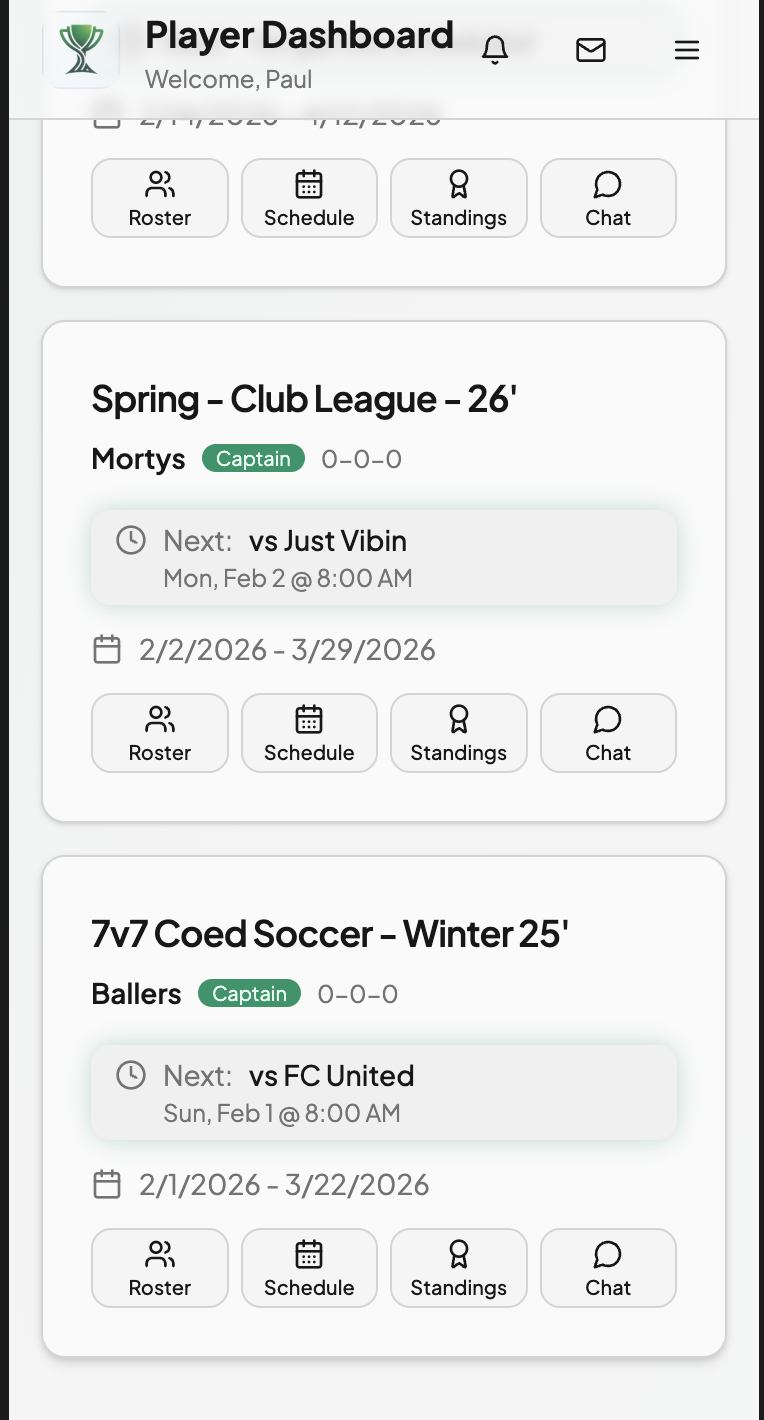
Open SportsGrove and go to your Player Dashboard. You'll see cards for each league you're in. Find the team card for the league where you want to add players.
Tip: Each league card shows your team name, your role (Captain), and quick-access buttons at the bottom.
Step 2: Tap "Roster" on the team card
On the team card, tap the "Roster" button at the bottom left. This opens your team's roster showing all current players.
Step 3: Tap the "Invite" button
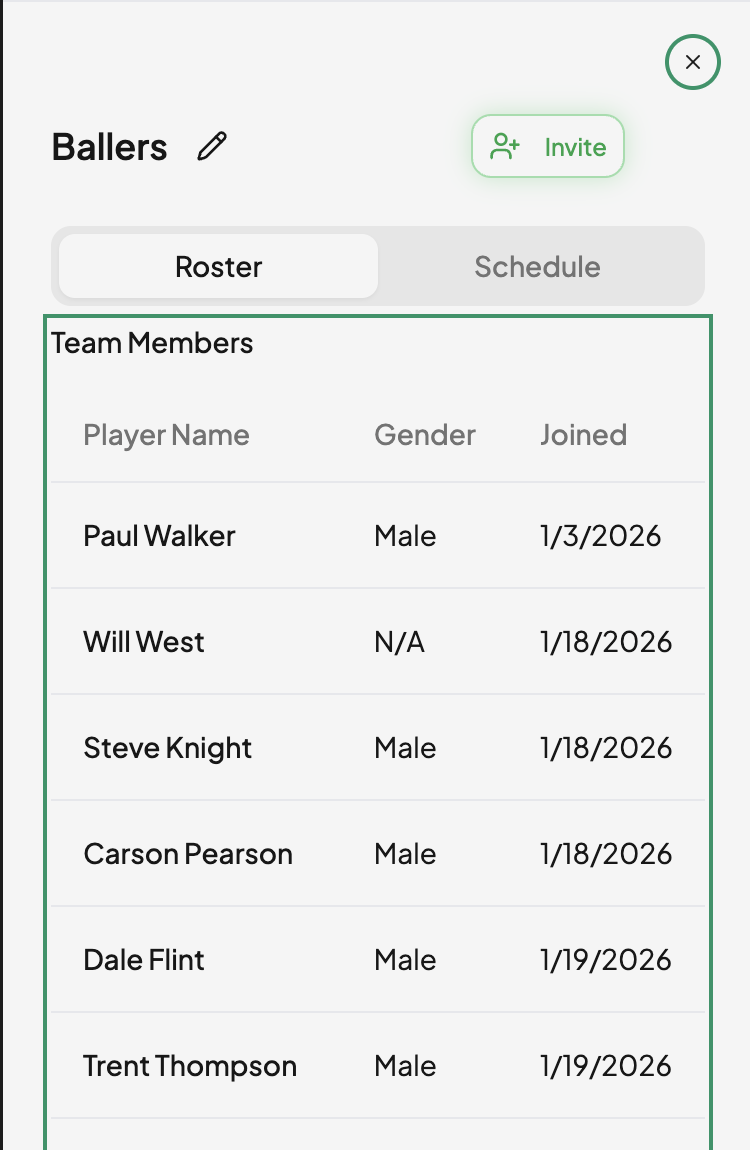
On the roster screen, you'll see an "Invite" button near the top right, next to your team name. Tap it to open the Invite Teammates screen.
Tip: Only captains will see the Invite button. If you don't see it, check with your league organizer.
Choose How to Invite
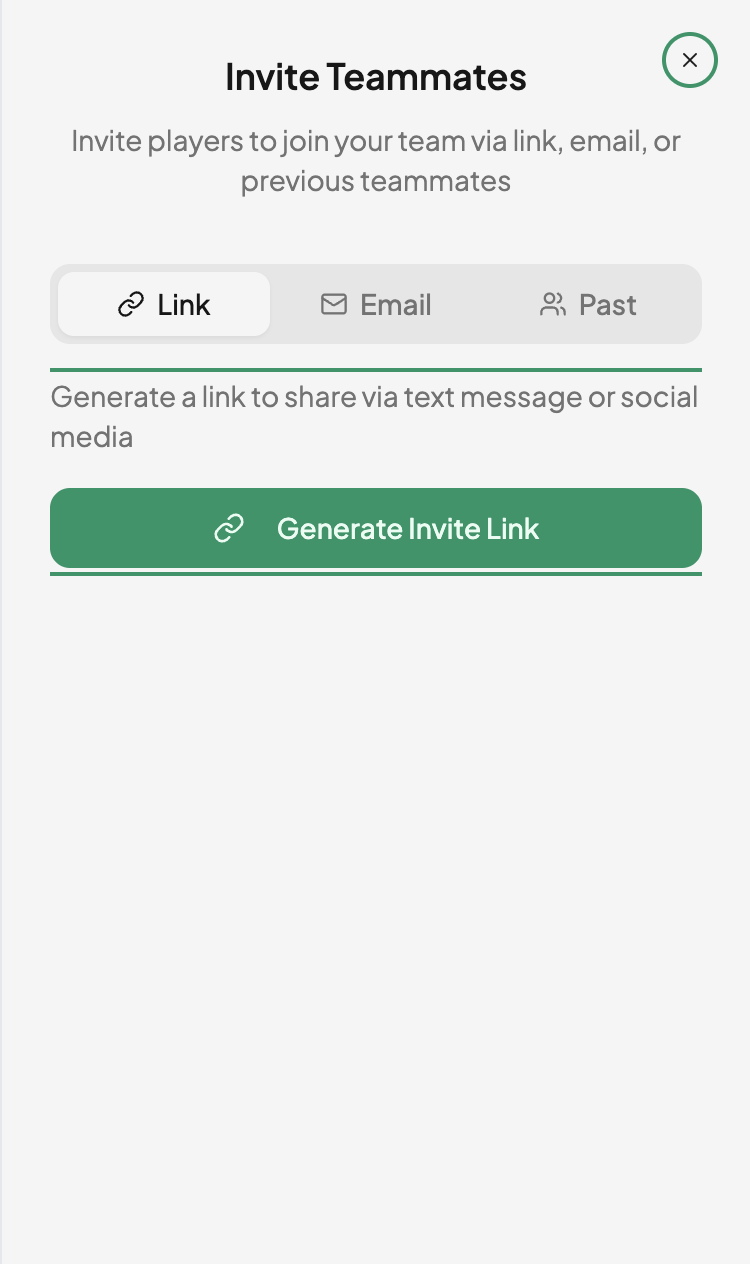
Once you're on the Invite Teammates screen, you'll see three tabs at the top: Link, Email, and Past. Choose the method that works best for you.
Share an Invite Link
Best for sharing directly with your teammates via text message or group chat.
- Make sure the "Link" tab is selected (it's the first tab).
- Tap the green "Generate Invite Link" button.
- The link will be copied to your clipboard automatically.
- Paste the link into a text message or group chat and send it to your teammates.
Tip: This is the easiest method for inviting multiple people at once! Only share the link directly with players you want on your team.
Send an Email Invitation
Best when you have a player's email address and want to send them a direct invitation.
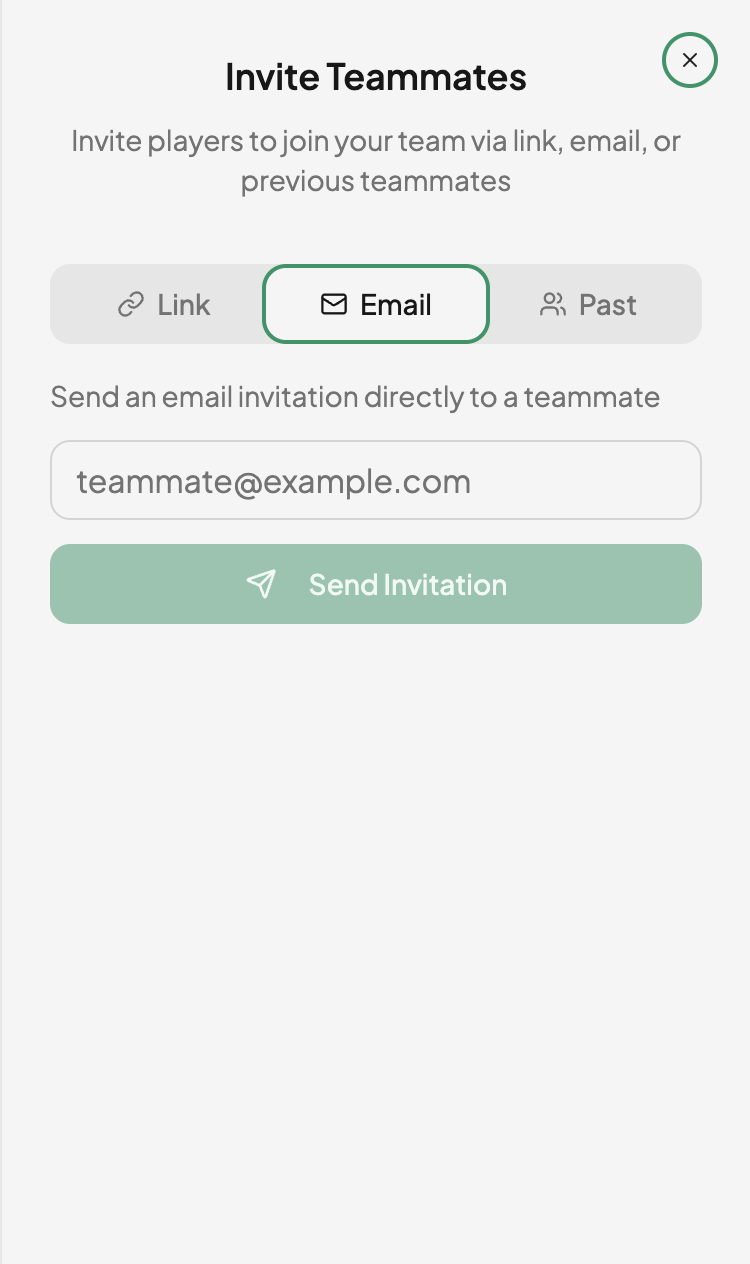
- Tap the "Email" tab at the top of the Invite Teammates screen.
- Type your teammate's email address into the text field.
- Tap the green "Send Invitation" button.
- Your teammate will receive an email with a link to join your team.
Tip: Send one invitation per email address. Repeat for each player.
Add Past Teammates
If you've played with someone on SportsGrove before, you can quickly re-invite them.
- Tap the "Past" tab at the top of the Invite Teammates screen.
- You'll see a list of players you've previously been on a team with.
- Tap on a player's name to invite them to your current team.
Tip: If you don't see anyone listed, it means you haven't had teammates on SportsGrove before. Use the Link or Email method instead.
Quick Reference
| Method | Best For | Steps |
|---|---|---|
| Link | Group texts, inviting many teammates at once | Roster → Invite → Link → Generate Invite Link → Paste & send |
| Direct invites when you have their email | Roster → Invite → Email → Enter email → Send Invitation | |
| Past | Re-inviting players from a previous season | Roster → Invite → Past → Select player |
Related articles:
- Viewing Your Team Roster
- Understanding Your Player Dashboard